Python Behave Integration
Gherkin PowerTools provides deep, native integration for Python Behave projects.
Note: The features on this page require Python Behave. If you are using Cucumber.js, SpecFlow, or other frameworks, these specific features will not activate.
Workspace Discovery & Project Detection
Gherkin PowerTools automatically scans your workspace to discover Python step definition files.
It does this through a lazy-initialized background indexer that parses your *.py files looking for Behave decorators (@given, @when, @then, @step). This happens automatically within a few seconds of opening your project.
Zero-Config Virtual Environment Discovery
To prevent false matches and eliminate performance overhead from indexing irrelevant files, the extension implements Zero-Config Virtual Environment Discovery. It automatically detects and excludes local virtual environments (node_modules, .venv, venv, env, etc.) by default.
Supported Project Structures
By default, the extension searches for Python steps in:
- **/steps/**/*.py
- **/features/steps/**/*.py
Custom Step Paths
If your project uses a custom directory structure (e.g., a monorepo with shared_steps/), you can easily add those paths in your configuration:
"gherkinPowerTools.behave.stepGlobs": [
    "**/steps/**/*.py",
    "**/features/steps/**/*.py",
    "**/shared_steps/**/*.py"
]
Step Autocomplete (IntelliSense)
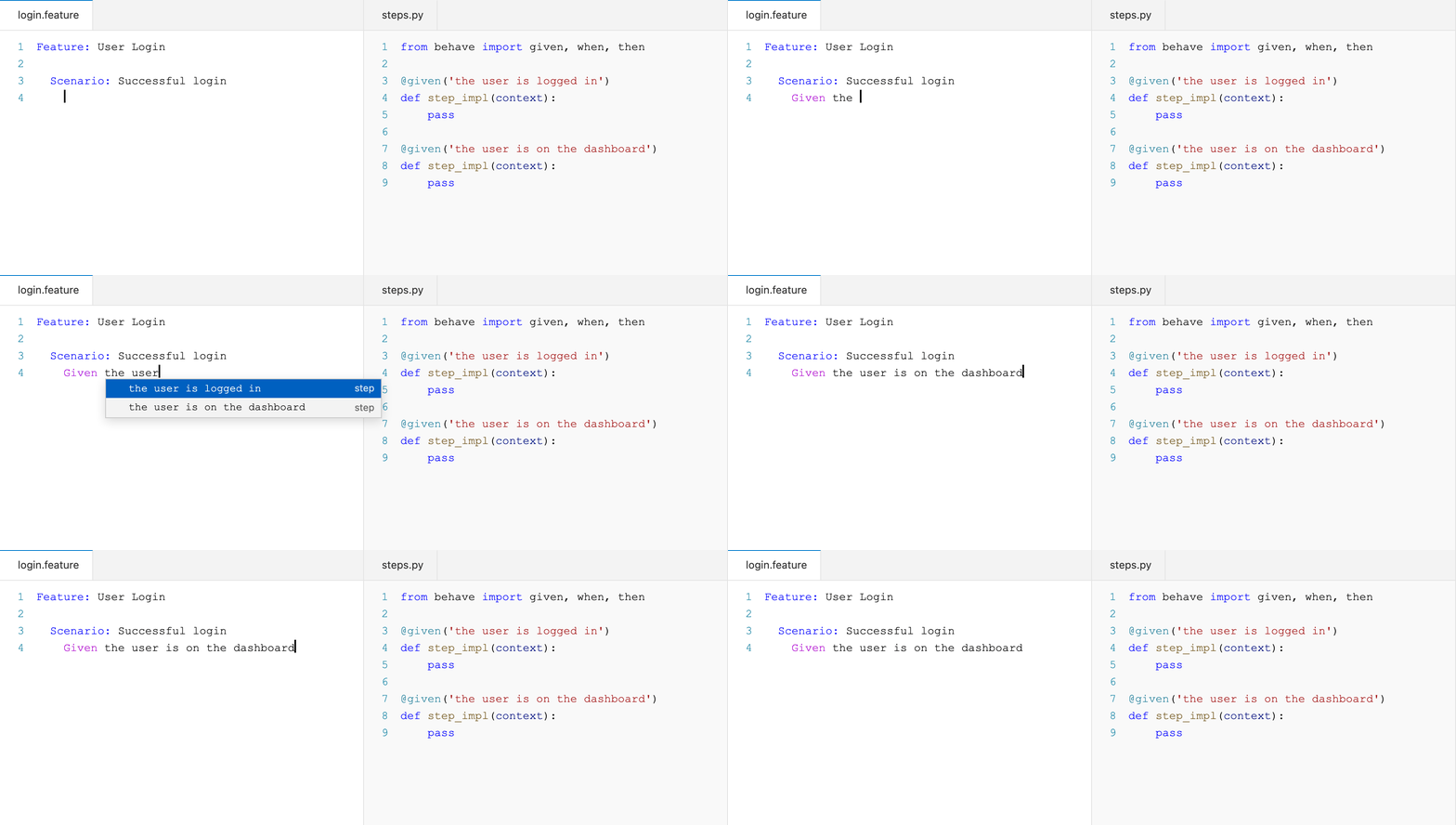
As you type in a .feature file, the extension offers context-aware autocompletion from your indexed Python steps.
It natively understands the state of your scenario. A @when step will only be suggested if you type When or a continuation keyword (And, But) that resolves semantically to a When.
When navigating the Autocomplete suggestion list, the details panel (hover) will explicitly display: - The underlying Python function name and its docstring. - The exact Regex (or raw pattern) the parser generated. - The Source file path where the definition is located.
Smart Context-Aware Ranking
Autocomplete suggestions intelligently adapt based on your cursor's context:
- Context-Aware Keywords: Suggests
Given,When,Thenbased on the previous step's semantic type. - Context-Aware Step Discovery: Suggests only step definitions that match the current semantic keyword, drastically reducing noise.
- Lexicographical Ranking: Autocomplete utilizes a strict 5-tier semantic ranking model. Exact text matches (Tier 1) and semantic matches (Tier 2) will mathematically outrank steps based merely on popularity (Tier 5) to guarantee the best contextual result.
-
Robust Regex Snippet Generation: When a complex
RegExpBehave step is discovered, the engine intelligently extracts capture groups ((?P<name>...)), optionals, and character classes into tab-stoppable Snippet placeholders (e.g.${1:name}). Every generated snippet is strictly validated against the originalRegExpto prevent invalid syntaxes. Unsupported constructs fall back cleanly to a safe pattern preview. -
Tier 1 (Text Compatibility): Exact text matches or token prefixes to what you've typed are strictly prioritized.
- Tier 2 (Semantic Compatibility): Steps that precisely match your Gherkin keyword (
Given/When/Then) are prioritized over generic@stepdefinitions. - Tier 3 (Matcher Specificity): Punishes highly permissive or overly broad regex matchers.
- Tier 4 (Context Affinity): Using the mathematically robust
WorkspaceGraph, the extension checks which steps are used in your current.featurefile or are frequently found alongside your scenario's tags (e.g.,@ui). - Tier 5 (Learned Signals): Your recently accepted completions (LRU cache) and global workspace usage counts act as the final tiebreakers.
O(1) Autocomplete Hot-Path
The interactive IntelliSense engine uses a specialized CompletionContextCache to fetch semantic tags and local step texts directly from the memoized AST. Subsequent completions fetch this context in ~0.0004ms, rendering the autocomplete engine completely independent of file size.
Stable Step Definition Identity
To ensure accurate usage tracking and completion ranking, the engine uses a deterministic Step Definition Identity
(StepDefinitionId). Unlike simpler tools that only index the raw regex pattern, Gherkin PowerTools calculates a
unique canonical identity for every step formed strictly by a uri:line mapping combined with its semantic type, matcher type, normalized pattern,
and function name. This guarantees that duplicate patterns across different files do not collide, providing 100%
accurate blast-radius impact analysis and autocomplete ranking even during major refactors.
Ambiguous Step Grouping
If your project contains identical step definitions (ambiguous steps), Gherkin PowerTools automatically groups them in the Autocomplete list to prevent cluttering the menu with identical duplicates.
- The grouped item visually displays how many matches were found (e.g. (2 matching definitions)).
- The Markdown documentation (hover) aggregates and lists every source file causing the ambiguity.
- If the ambiguity spans different semantic types (e.g. @step vs @given), the item's icon is elevated to a generic Event to denote its dual nature.
- Accepting a grouped item accurately tracks and boosts the ranking of all underlying Python definitions.
- Relaxed Ambiguity Policy for Usage: The usage indexer correctly tracks and records usages for ambiguous step candidates, ensuring that colliding steps are accurately reflected in Impact Analysis rather than incorrectly appearing as "Unused".
Consistent Source Location Presentation
Source file paths inside Hover, Autocomplete documentation, Impact Analysis Quick Picks, and Diagnostics natively support multi-root workspaces. They securely render workspace-relative paths and drop redundant prefixes to prevent exposing absolute disk paths or confusing developers.
Scenario Outline Parameters
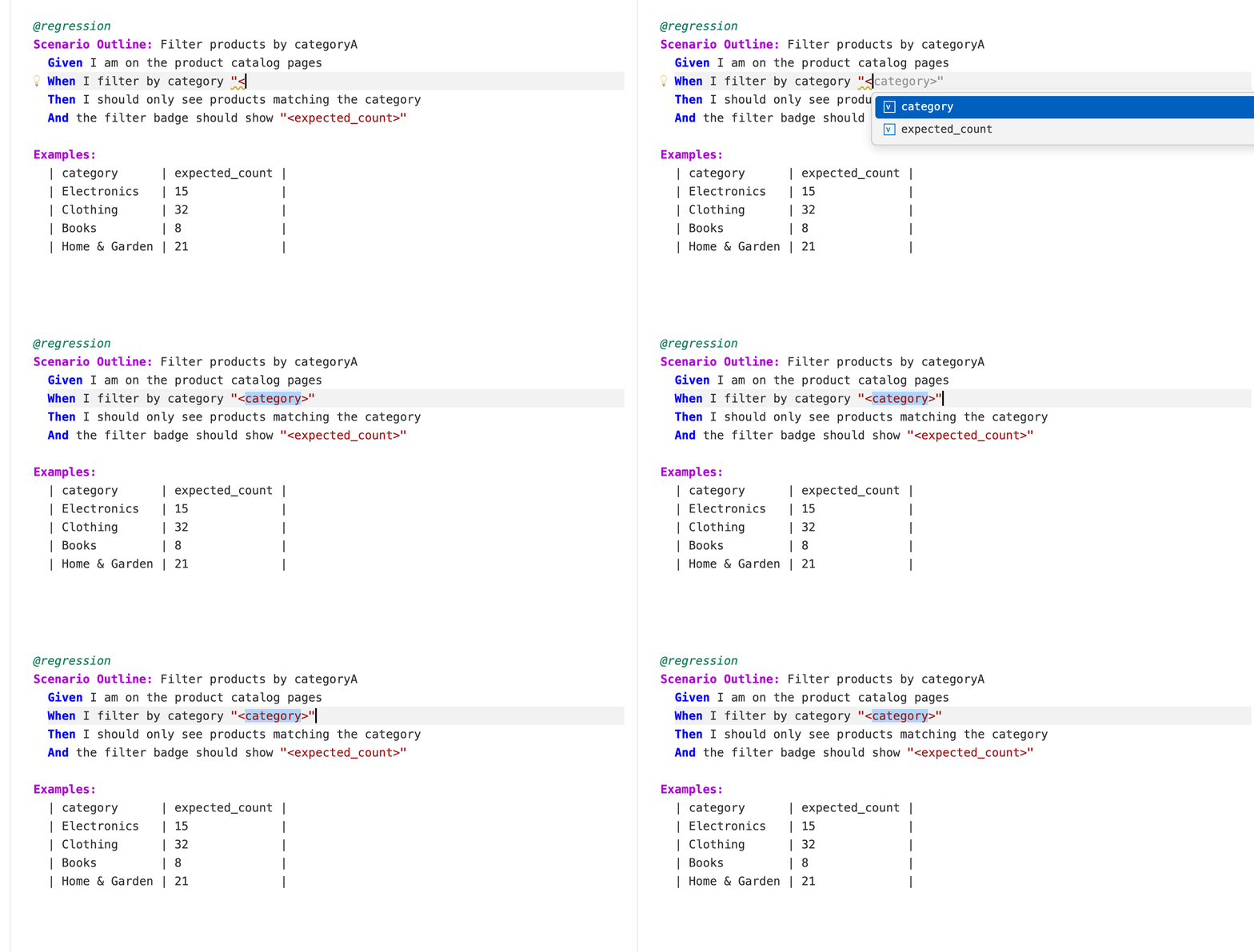
If you are inside a Scenario Outline table, typing < inside a step will automatically prompt you with the column headers from your Examples: table.
This feature natively parses the Gherkin Abstract Syntax Tree (AST), which guarantees 100% accuracy for escaped pipes
(\\|), localized Gherkin dialects, and correctly merges deduplicated headers across multiple Examples: blocks
within the same scenario. If your document is temporarily malformed while typing, it automatically falls back to an
instantaneous text scanner to keep suggestions perfectly fluid.
Go to Definition
You can jump from any Gherkin step directly to its implementing Python decorator.
- macOS: Cmd+Click
- Windows/Linux: Ctrl+Click
- Or place your cursor on the step and press
F12.

Find All References
Just like Go to Definition connects you to the Python code, Find All References works in reverse. Pressing Shift+F12 (or right-clicking and selecting Find All References) on any Python @step decorator will instantly locate every usage of that step across all of your .feature files natively using VS Code's references API.
Because the extension relies on its internal WorkspaceGraph, searching for usages happens in $O(1)$ time (<5ms). You do not need to wait for a workspace-wide grep or regex search.
Hover Information
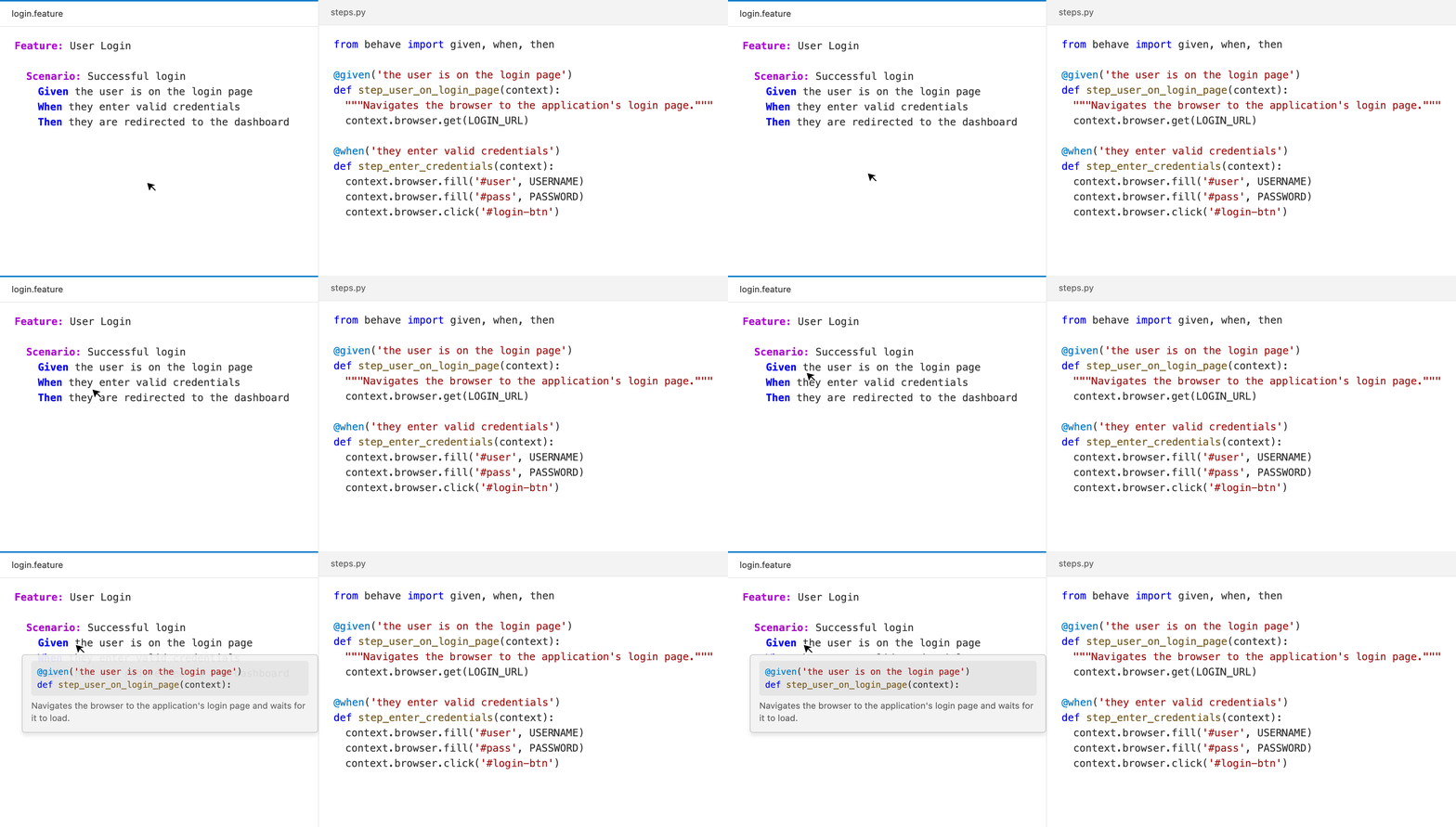
Hovering over any valid step in your .feature file reveals its Python implementation details in a tooltip, including:
- The exact Python file and line number.
- The Python function signature.
- The Python docstring (if provided).
Impact Analysis (Blast Radius)
When modifying existing Python step definitions, it is critical to know how many scenarios will be affected. Gherkin PowerTools includes a real-time Impact Analysis engine.
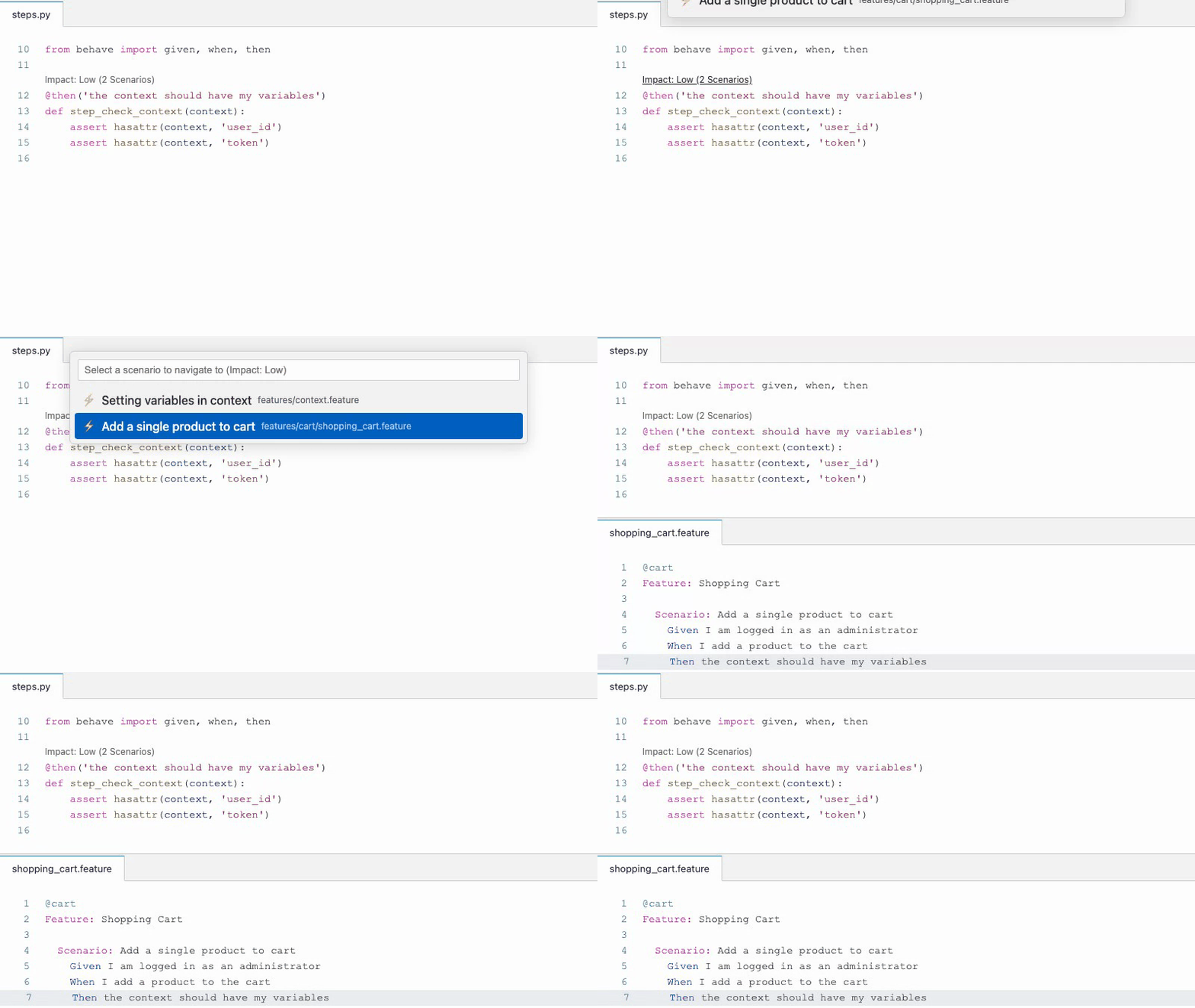
A CodeLens appears directly above every step definition in your .py files showing its usage impact:
- ⚠️ Impact: Ambiguous (Step matches multiple definitions and causes ambiguity)
- Impact: High (Used in 20+ scenarios)
- Impact: Medium (Used in 5+ scenarios)
- Impact: Low (Used in 1 to 4 scenarios)
- Impact: Unused (Not referenced anywhere)
Clicking the CodeLens opens an interactive menu listing every specific scenario that uses this step. The QuickPick menu uses a simplified path display for better readability. Selecting a scenario instantly opens the .feature file and navigates directly to the exact step (rather than just the top of the scenario), allowing you to quickly prioritize your testing when refactoring.
(Note: Impact Analysis can be disabled via the gherkinPowerTools.impactAnalysis.enabled setting if you prefer to reduce CodeLens noise).
Diagnostics: Undefined & Ambiguous Steps
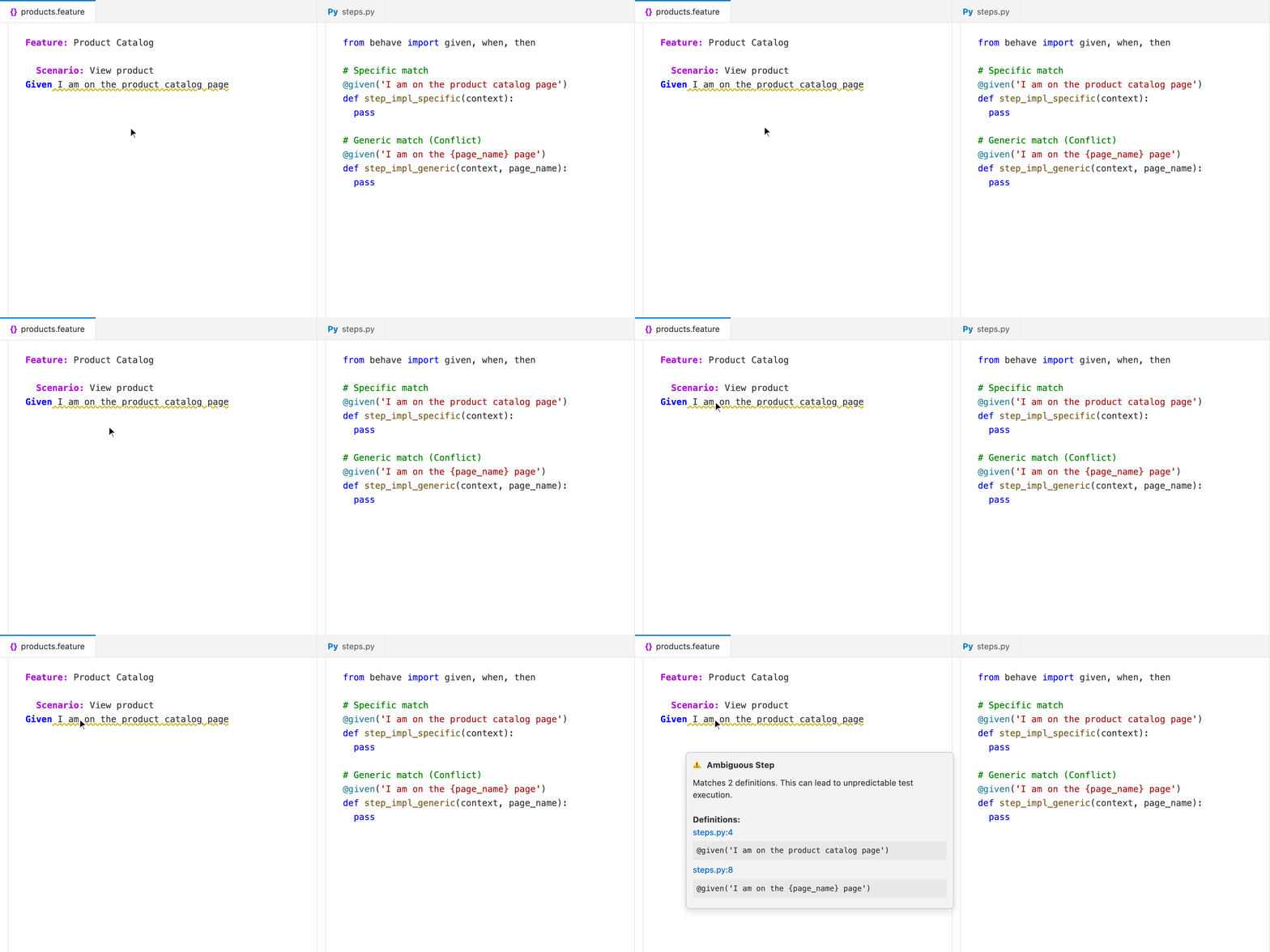
The realtime Linter actively validates your steps against the Python backend:
- Undefined Steps: If a step has no matching Python decorator, it is underlined with an error (configurable via
gherkinPowerTools.rules). - Ambiguous Steps: If a step matches multiple regular expressions in your Python files (e.g., overlapping wildcards), it is flagged so you can tighten your patterns.
- Semantic And/But Matching: Steps using the
AndorButkeywords inherit the semantic context of their preceding step (Given,When, orThen). This ensures precise pattern matching, preventing false positives for "Unused Steps" and accurately disambiguating steps that share the same regex but have different keyword decorators.
BDD Anti-pattern Detection
Gherkin PowerTools includes a comprehensive BDD Anti-pattern Detection Engine that inspects your entire workspace to ensure your .feature files and Python step definitions are healthy and maintainable.
Proactive Indexing: When you run the analysis, the extension proactively scans and parses all .feature and .py files across your entire workspace, ensuring 100% accuracy even if you haven't opened those files in your current session.
You can generate this report by running the Gherkin PowerTools: Show Gherkin Health command from the Command Palette. It opens an interactive Dashboard Webview displaying actionable Anti-patterns:
- Unused Steps: Detects step definitions that are never referenced by any parsed
.featurefile in your workspace, nor invoked programmatically viacontext.execute_steps()in other Python files. Unused steps are grouped by their parent Python file for easy bulk-cleaning. - Duplicated Implementations: Finds identical step definitions (same matcher type, keyword, and regex pattern) across different files which will cause a runtime failure in Behave.
Semantic analysis ensures identical patterns with different keywords (e.g.
@givenvs@then) are correctly allowed. The structural identity engine robustly handles patterns containing complex regular expressions, unicode characters, and colons without false positives. - Oversized Scenarios & Excessive Tags: Flags overly complex features that degrade test maintainability.
Interactive Navigation: Every file reference in the dashboard is an interactive link. Click any file path to instantly open that file in VS Code at the exact line number.
Step Refactoring
Gherkin PowerTools provides step refactoring operations accessible from the editor. All refactoring operations use VS Code's WorkspaceEdit API, which allows you to preview and undo all changes.
Rename Step
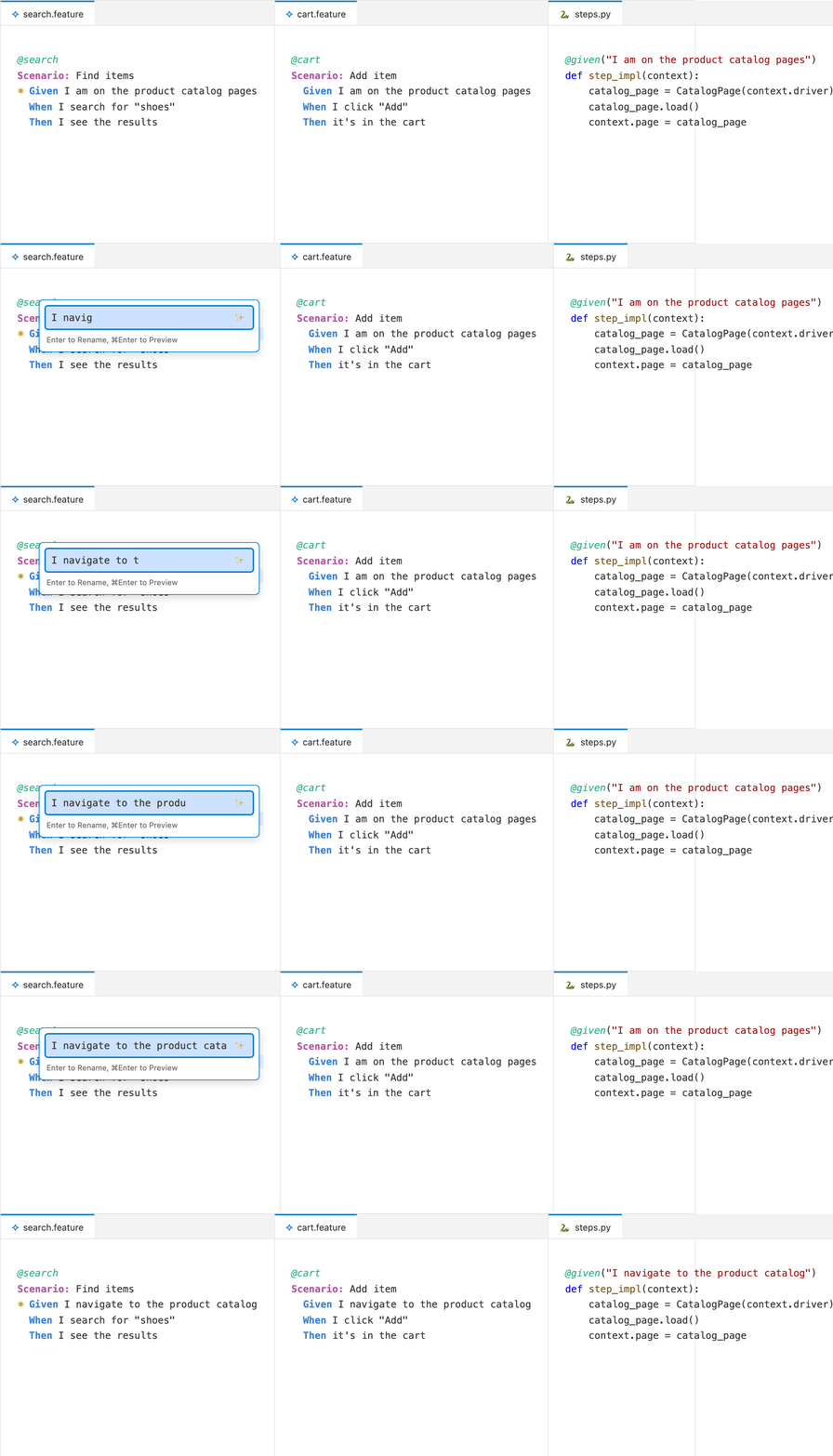
The native VS Code Rename Symbol action (default F2) on a Gherkin step or Python step decorator renames the step text and updates all usages across .feature files.
- Place your cursor on a step in a
.featurefile, or the string inside@step(...)in Python. - Press F2 or right-click and select Rename Symbol.
- Enter the new step name.
- The extension updates the Python decorator and all matching Gherkin steps in the workspace.
Gherkin PowerTools features progressive disclosure: if the blast radius of your rename is small, it applies instantly. If the rename is "high impact" (affecting multiple files or >3 scenarios), it safely triggers VS Code's native Refactor Preview pane, allowing you to manually review all exact changes before committing them.
Note: Rename operates via the Workspace Graph. The step must be indexed (i.e., the Python file must be within your configured
stepGlobs) for the rename to locate all usages.
Extract Step
- In a
.featurefile, select multiple Gherkin step lines. - Press Ctrl+. (Cmd+. on macOS) to open the Code Actions lightbulb.
- Select Extract Steps to new definition.
- Enter a name for the new step.
- Choose the target Python step file from the list.
The extension inserts a Python stub decorated with the correct @given, @when, or @then keyword, inferred from the keywords present in your selection.
Step Stub Generation
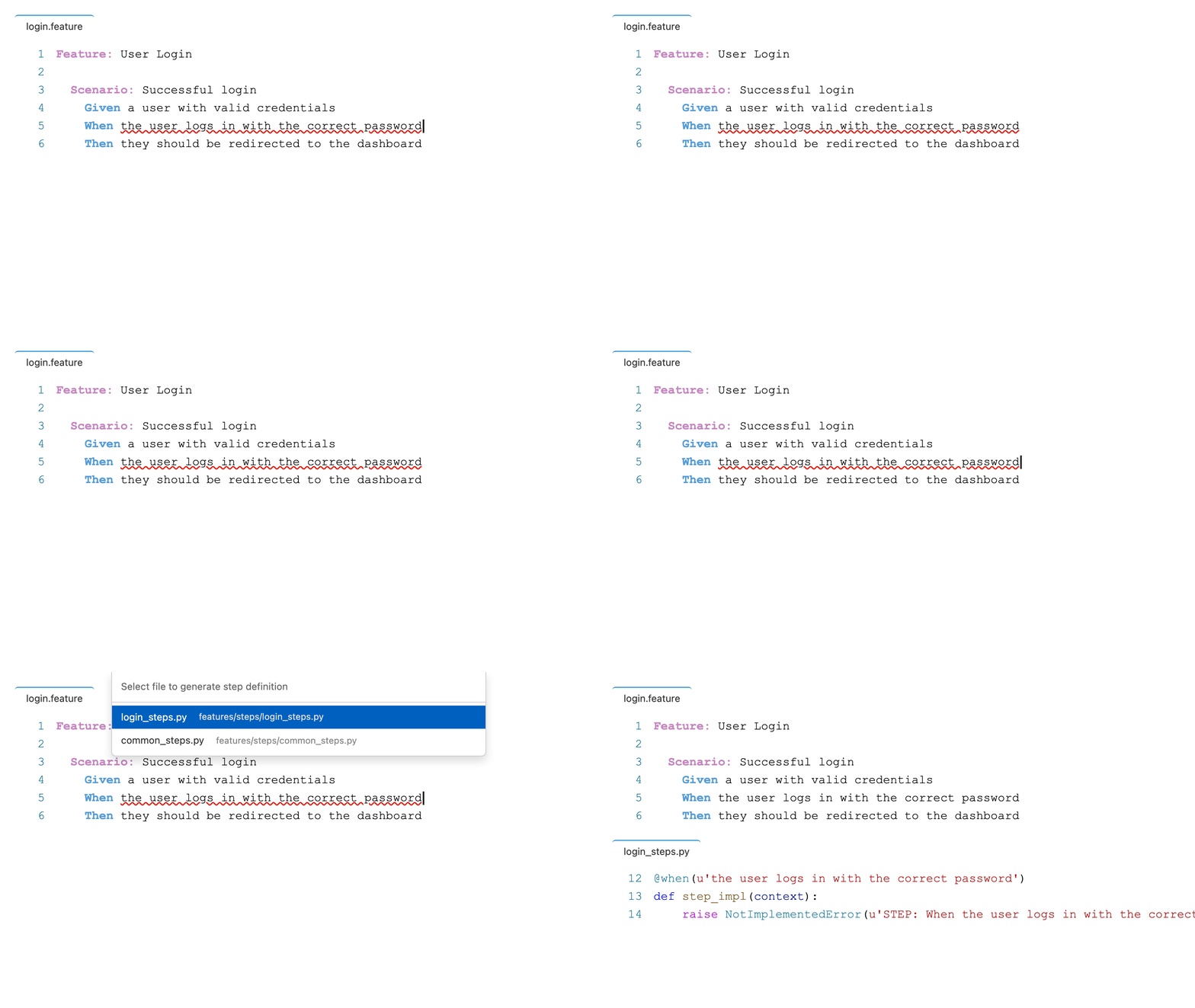
If you write a step in your .feature file that doesn't exist yet, Gherkin PowerTools can generate the Python code for you.
- Write the undefined step.
- Place your cursor on the underlined step and press Ctrl+. (Cmd+. on macOS).
- Select Generate Python Step Definition.
- The extension will automatically extract string and integer parameters into variables, create the correct
@given/@when/@thendecorator, and determine the safest destination for the stub: - Workspace Aware Destination: Instead of blindly generating files in
features/steps, the engine inspects yourgherkinPowerTools.behave.stepGlobsconfiguration to understand your specific project architecture. - Intelligent Inference: If there is a clear, standard destination (e.g. an existing step file next to your feature, or a single configured step directory), the engine will automatically select or create the correct
steps.pyfile there. - Missing Files: If no matching Python files are found (or the project is empty), you will be prompted to create one first.
- Ambiguity Resolution: If your configuration allows multiple valid destinations, a clean QuickPick menu will appear, ensuring you retain control over where code is generated.
- Auto-Save & Background Reactivity: Upon generation, the target Python file is automatically saved. The extension instantly detects this file-system change in the background, rebuilds the internal step registry, and clears the original "Undefined Step" error squiggle in real-time.
- Safety First: The generation logic prioritizes reading the in-memory, unsaved state of your open editors instead of the disk state. This strictly prevents concurrent file modification race conditions, guaranteeing your unsaved work is never accidentally overwritten when appending new steps.
Known Limitations
- Dynamic Python Expressions: The extension's parser evaluates string literals in decorators (
@given("I login")). It cannot statically evaluate dynamic Python variables or function calls at runtime (@given(MY_CONSTANT)). These dynamic steps will not appear in autocomplete or Go to Definition. - Parse Types: Behave's custom
parsetypes (e.g.,@given(u'I log in as {user:User}')) are indexed, but autocomplete strictly uses the raw pattern.