Getting Started
Gherkin PowerTools requires no configuration to start formatting and linting your Gherkin files.
1. Installation
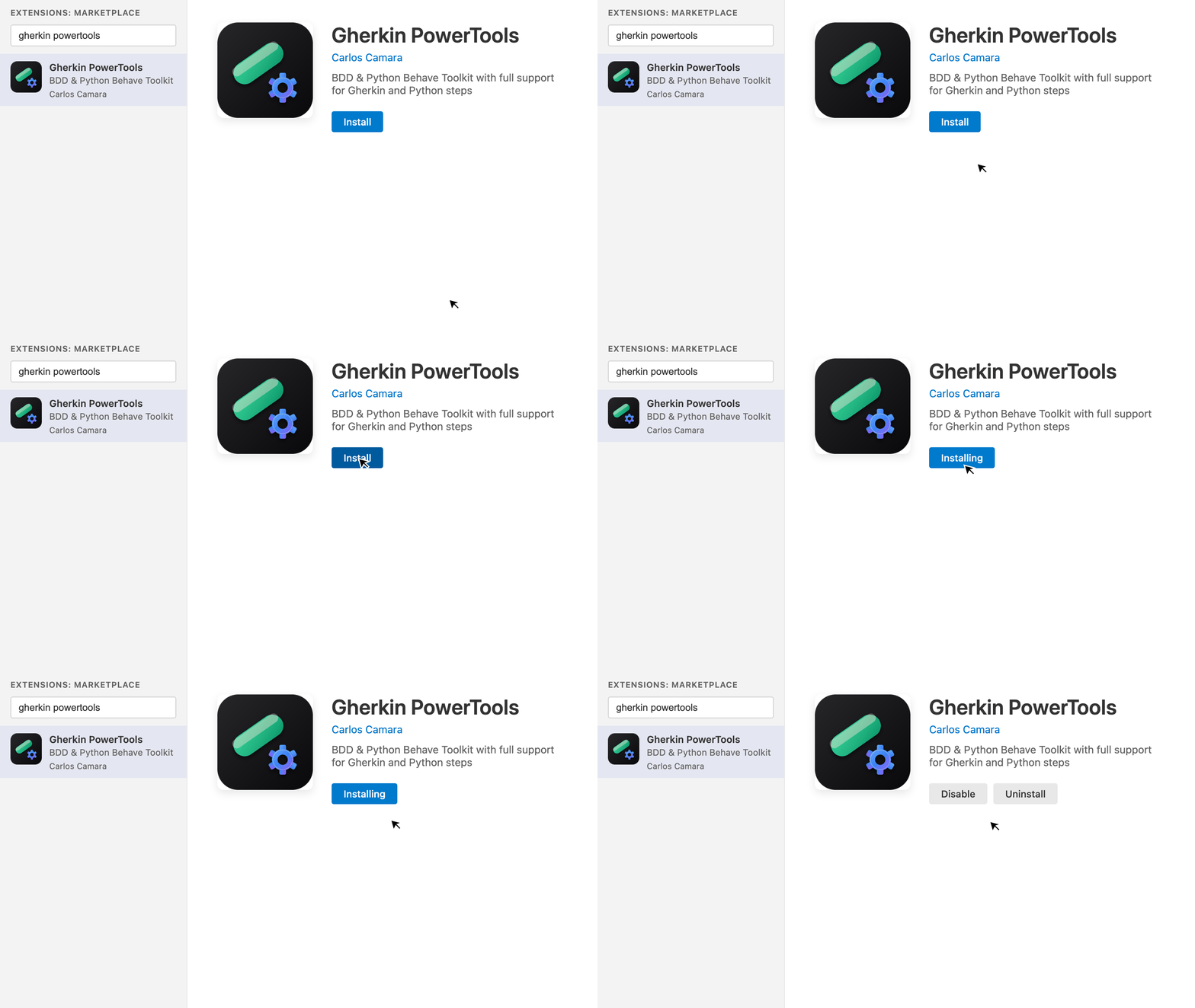
The fastest way to install is via the VS Code Marketplace:
- Open Visual Studio Code.
- Open the Extensions panel: Ctrl+Shift+X (Cmd+Shift+X on macOS).
- Search for "Gherkin PowerTools".
- Click Install.
2. Your First .feature File
Once installed, open any .feature file in your workspace. The extension activates automatically.
You immediately get: - Semantic Highlighting for keywords, tags, and parameters. - Document Outline in the explorer sidebar to navigate features and scenarios.
3. Formatting
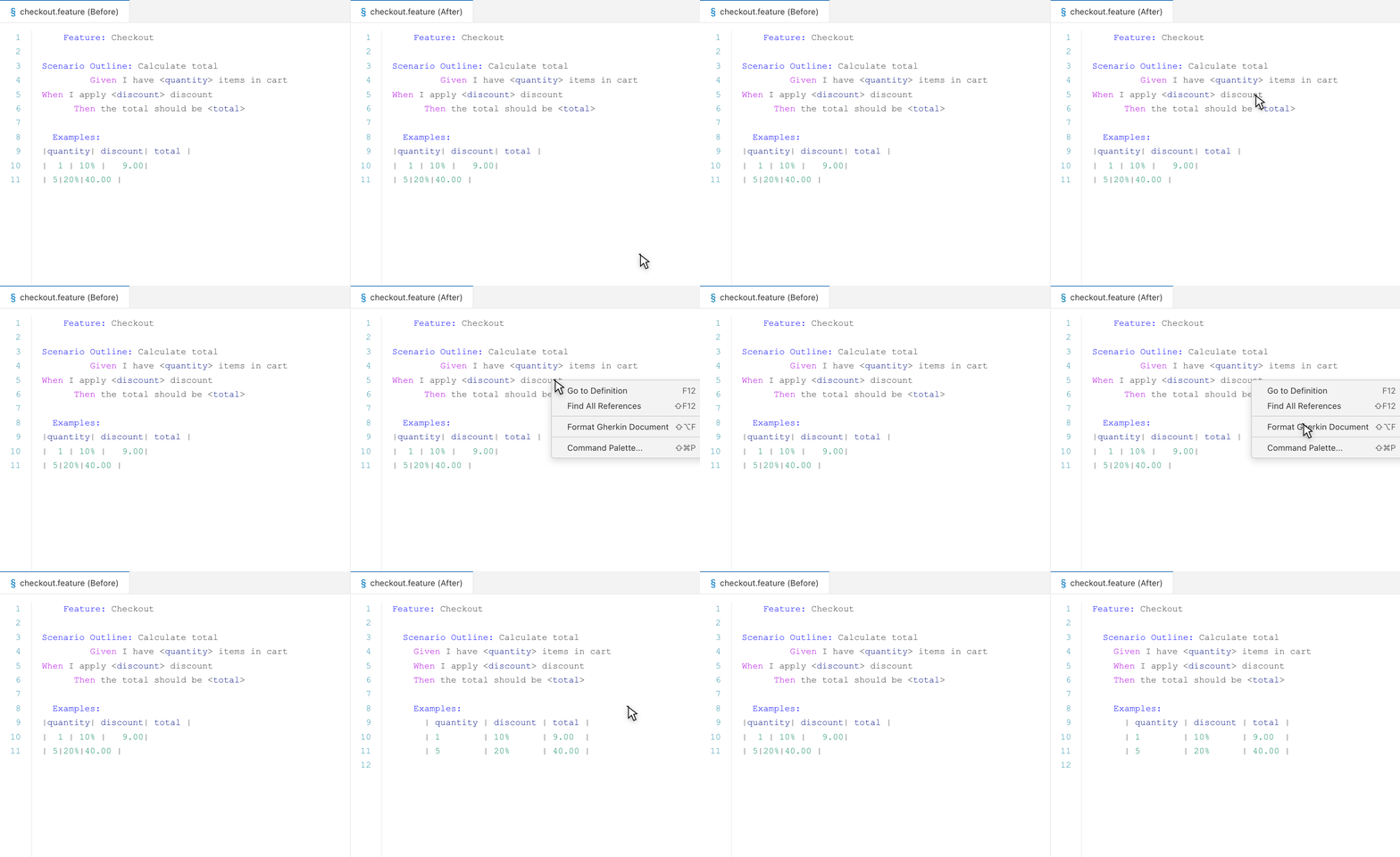
Try out the AST-powered formatter. Mess up the alignment of an Examples: table, then format the document:
- macOS: Shift+Option+F
- Windows / Linux: Shift+Alt+F
- Or open the Command Palette and type Format Document.
- Or right-click in the editor and select Gherkin PowerTools > Format Document.
[!NOTE] The formatter silently skips invalid documents when triggered automatically (e.g., Format on Save) so your typing flow is not interrupted. If you explicitly request formatting (via shortcut or command palette) on an invalid document, you will see a non-intrusive notification explaining why it couldn't format.
4. Diagnostics & Quick Fixes
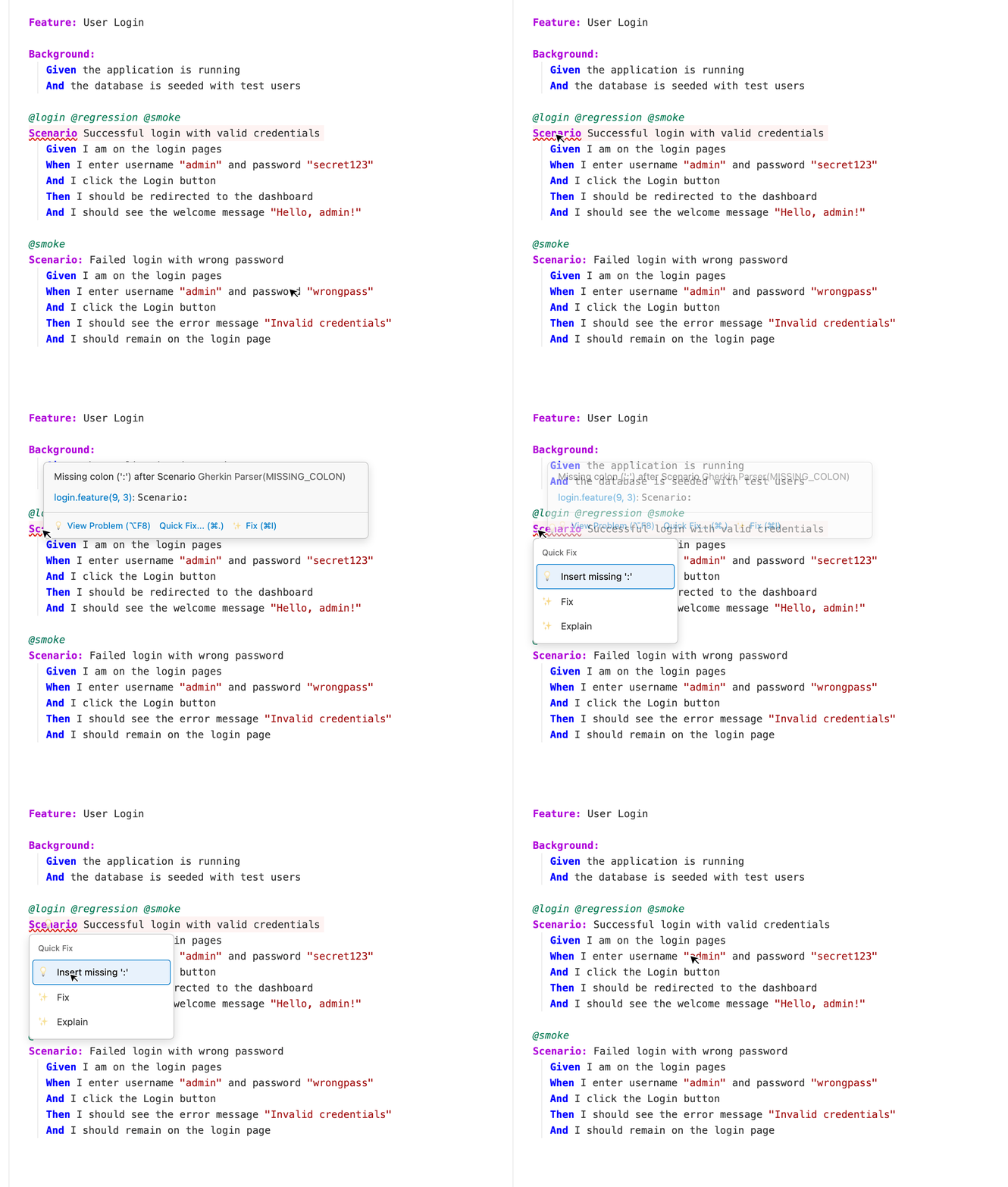
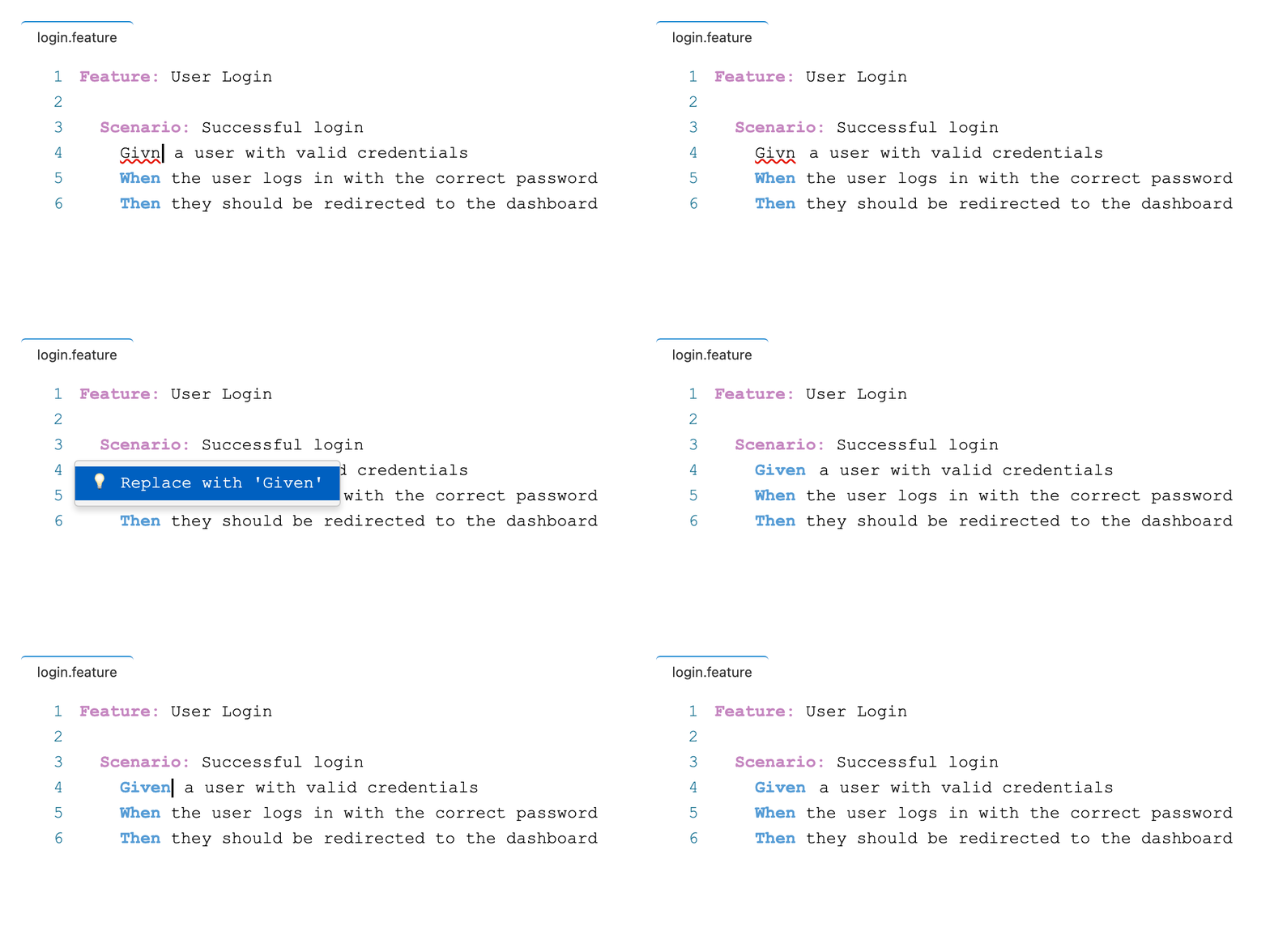
Write an invalid keyword, or leave out a colon : after Scenario. The real-time linter will underline the error.
Place your cursor anywhere on the line with the underlined text and press Ctrl+. (Cmd+. on macOS) or click the lightbulb to apply a Quick Fix.
5. Python Behave Setup (Optional)
When you open a workspace with Behave step definitions, Gherkin PowerTools automatically detects them.
- Go to Definition: F12 (F12) from a step in your
.featurefile to jump to the python code. - Hover Information: Hover over a step to see its Python signature, documentation string, and source file.
- Step Autocompletion: Start typing
Given,When, orThento get intelligent step suggestions.
Workspace Trust (Restricted Mode)
Gherkin PowerTools strictly adheres to VS Code's Workspace Trust model to keep you safe from executing untrusted code. When you open a repository in Restricted Mode, the extension will adapt its capabilities intelligently:
| Capability | Status in Restricted Mode | Rationale |
|---|---|---|
| Syntax Highlighting | ✅ Available | Completely safe, relies only on static grammar files. |
| Document Formatting | ✅ Available | Completely safe, relies on static AST rules without executing workspace code. |
| Gherkin Linter & Diagnostics | ✅ Available | Safe static parsing to detect structural typos and missing colons. |
| Behave Step Discovery | ✅ Available | Safe static Python AST parsing (does not import or execute your Python files). |
| Create Step Definition | ❌ Disabled | Generating Python code is restricted. Quick Fixes will show as disabled. |
| Batch Create Definitions | ❌ Disabled | Creating bulk Python definitions requires trust. |
| Rename Step | ❌ Disabled | Renaming steps mutates Python code. |
| Extract Step | ❌ Disabled | Refactoring into Python definitions requires trust. |
| Run & Debug Behave | ❌ Disabled | Executing test commands requires trust. |
Disabled actions will display a clean, native VS Code tooltip or a notification containing a "Manage Workspace Trust" button, ensuring you are never left guessing why a capability is unavailable.
[!IMPORTANT] To use Python Behave execution and step generation features, you MUST have a valid Workspace Folder opened in VS Code. Attempting to run tests or generate steps for standalone
.featurefiles outside of an active workspace is explicitly blocked for security and context-resolution reasons.
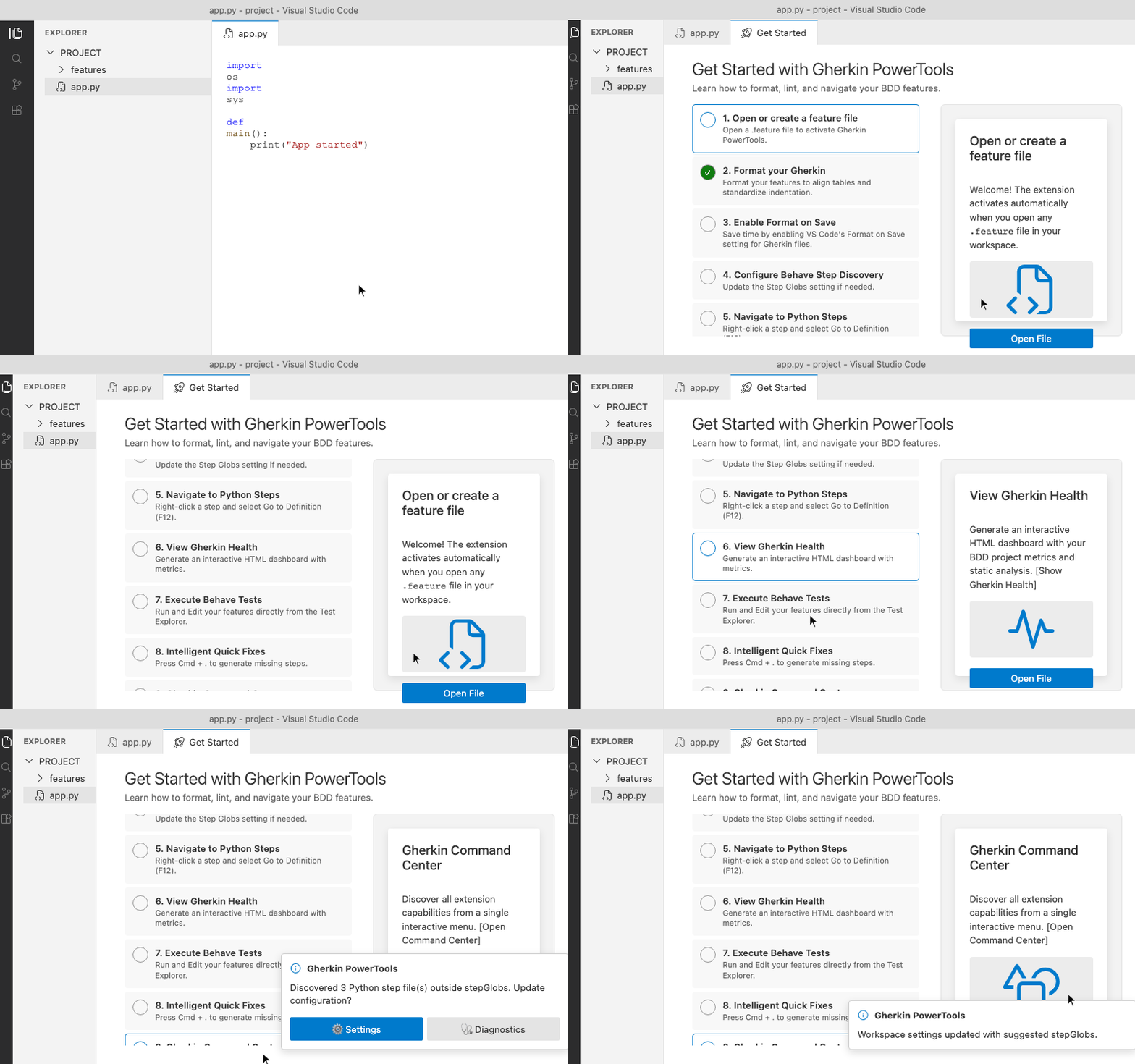
On your first run in a Python workspace, the First-Run Onboarding Experience automatically detects if it is a Behave project. If detected, a welcome notification will appear, providing a quick summary of the features found and direct links to the Walkthrough and Project Health Dashboard.
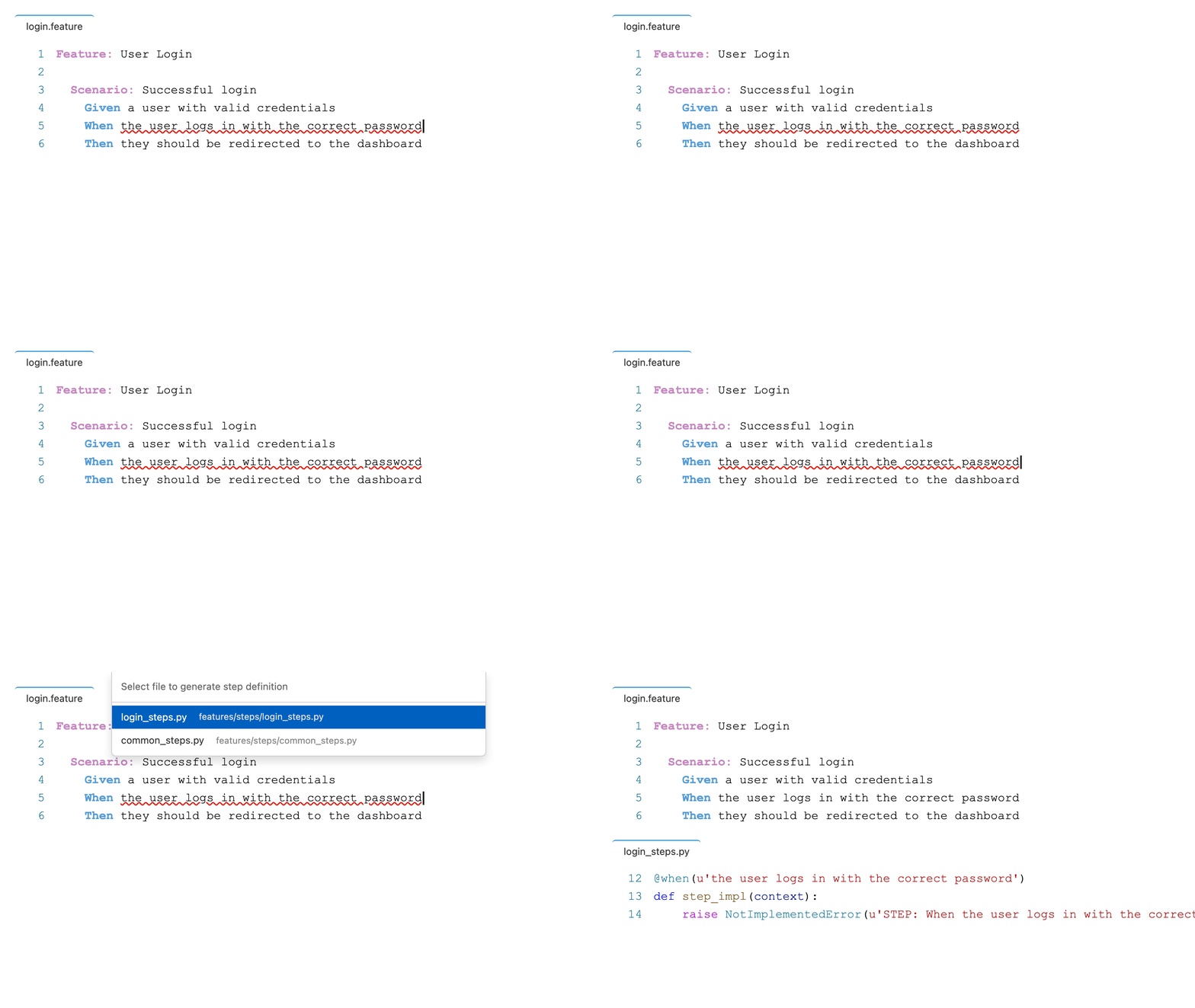
To generate your first Python step, write an undefined step in your .feature file, press Ctrl+. (Cmd+. on macOS), and select Generate Python Step Definition.
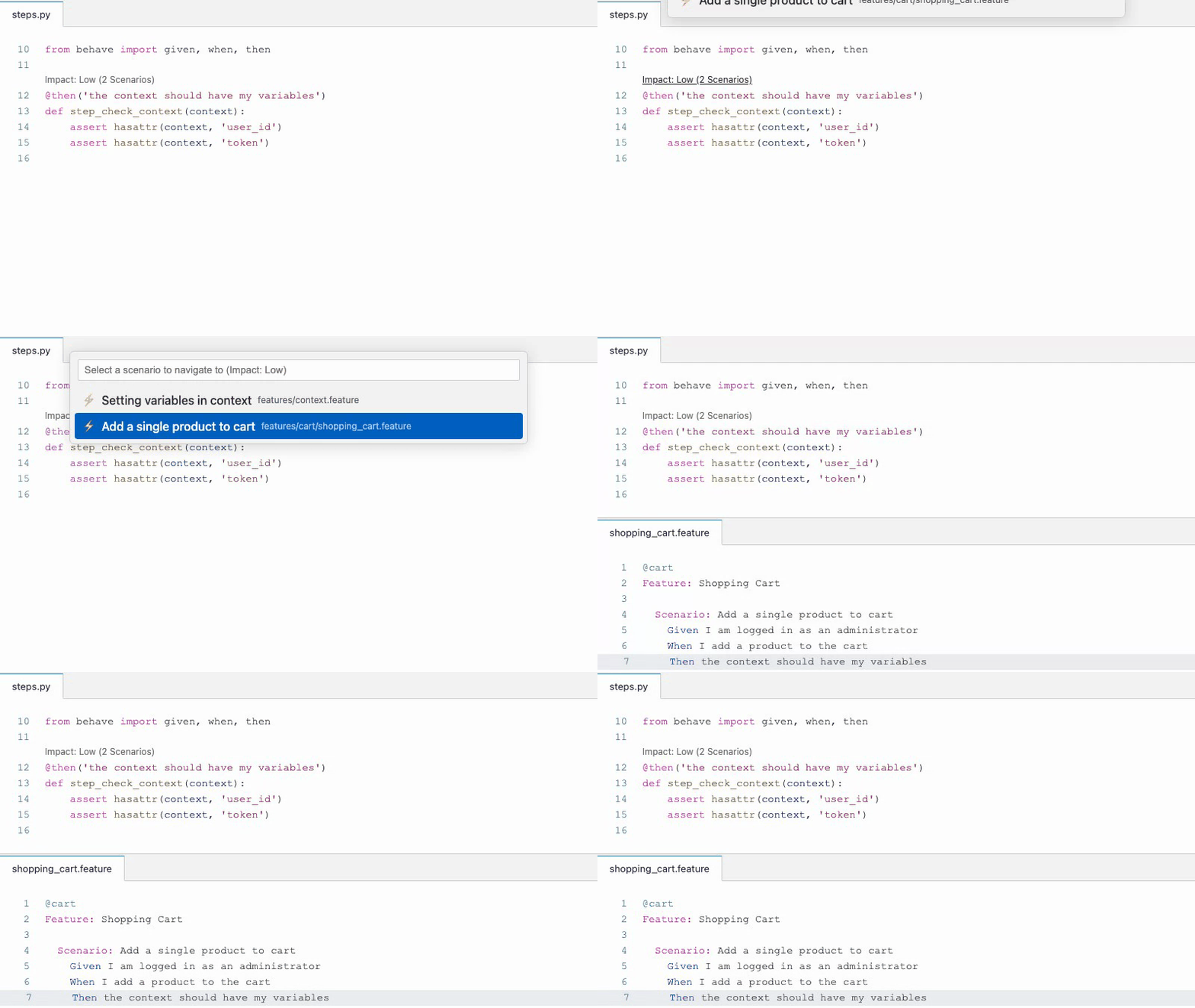
You can also view the exact Blast Radius of your step definitions via interactive CodeLenses that appear directly above your Python functions, showing exactly how many scenarios will be impacted by a change.
To run your tests, simply open the Testing panel in the VS Code sidebar. The extension automatically detects your Scenarios and lets you run, debug, and visually track them in real-time.
6. Command Center & Context Menus
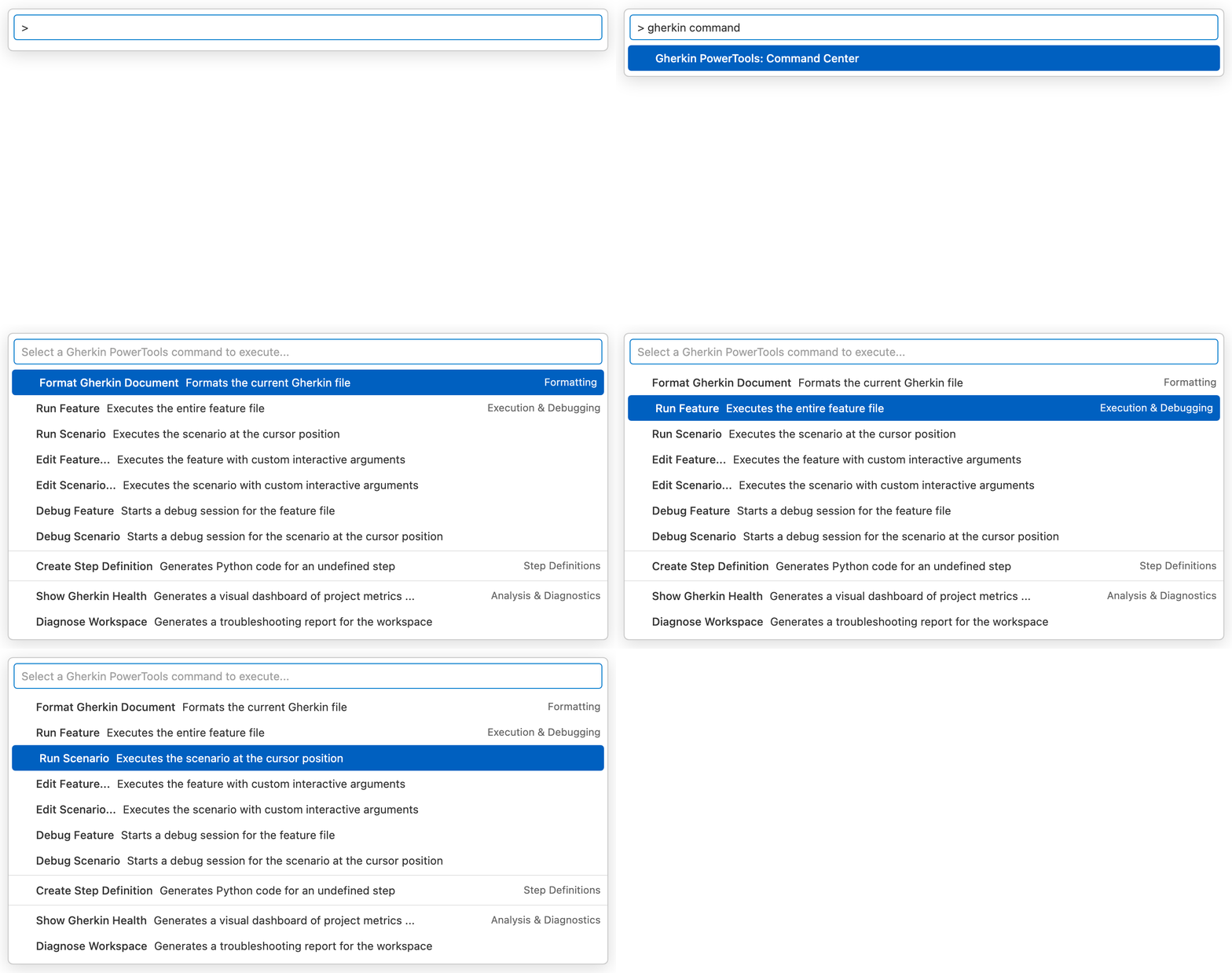
If you ever forget a command or shortcut, press Ctrl+Shift+P (Cmd+Shift+P on macOS) and search for Gherkin PowerTools: Command Center.
This opens an interactive quick-pick menu that groups all the extension's capabilities (formatting, running tests, diagnosing workspace, viewing statistics) into one unified searchable list.
Editor Context Menus: You can also access many of these features quickly by right-clicking anywhere in a .feature file to open the Gherkin PowerTools submenu (which includes Format, Diagnose Workspace, and Show Gherkin Health).
Additionally, if you right-click directly on a valid Gherkin step, a dynamic Rename Step option will appear within the Gherkin PowerTools submenu, allowing you to instantly rename the step across your entire workspace.
7. Command Line Interface (CLI)
Gherkin PowerTools includes a powerful CLI (@carlos-camara/gherkin-pt) that brings the Workspace Intelligence Engine directly to your terminal or CI/CD pipelines.
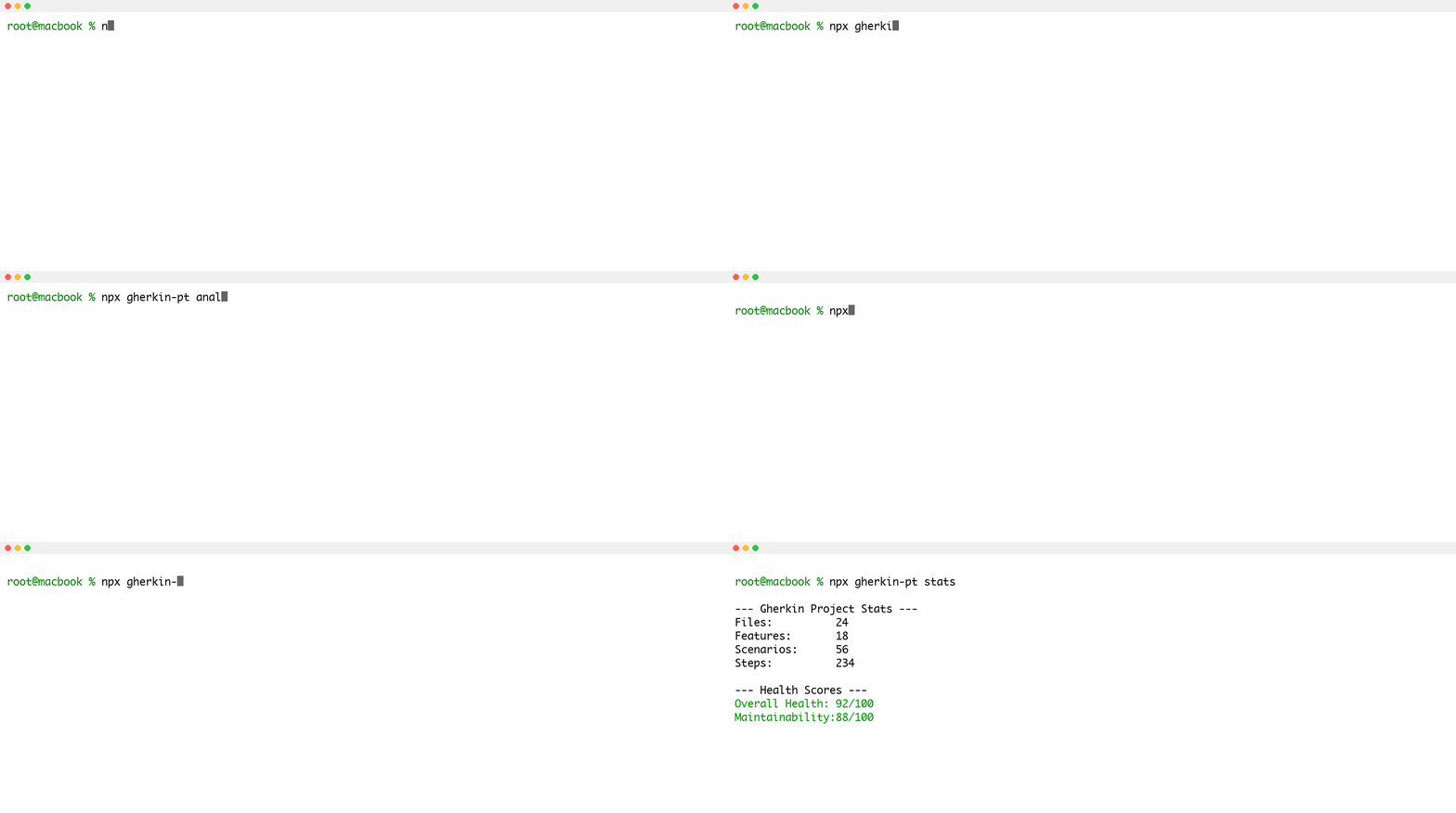
Run diagnostics, extract metrics, and enforce formatting headless:
8. Contextual Feature Discovery
To help you get the most out of Gherkin PowerTools without getting in your way, the extension includes a non-intrusive Contextual Feature Discovery engine.
As you work, the engine analyzes your actions locally (e.g., struggling with table alignment, or leaving a step undefined for a while) and surfaces lightweight contextual popups (like "Did you know you can auto-format this?" or "Would you like to generate this step?"). (Note: This is distinct from the static BDD Anti-pattern Detection Engine which runs globally via the Dashboard).
You can always dismiss these suggestions or click "Don't show again" to permanently silence a specific recommendation.
Next Steps
Explore the full capabilities: - Gherkin Editing (Formatting) - Diagnostics & Quick Fixes (Linter & Anti-Patterns) - Python Behave (Navigation & Generation) - Run and Debug (Test Explorer) - Command Line Interface (CLI) (Headless Execution & CI/CD) - Configuration Reference - Configuration Profiles (Team Baselines)